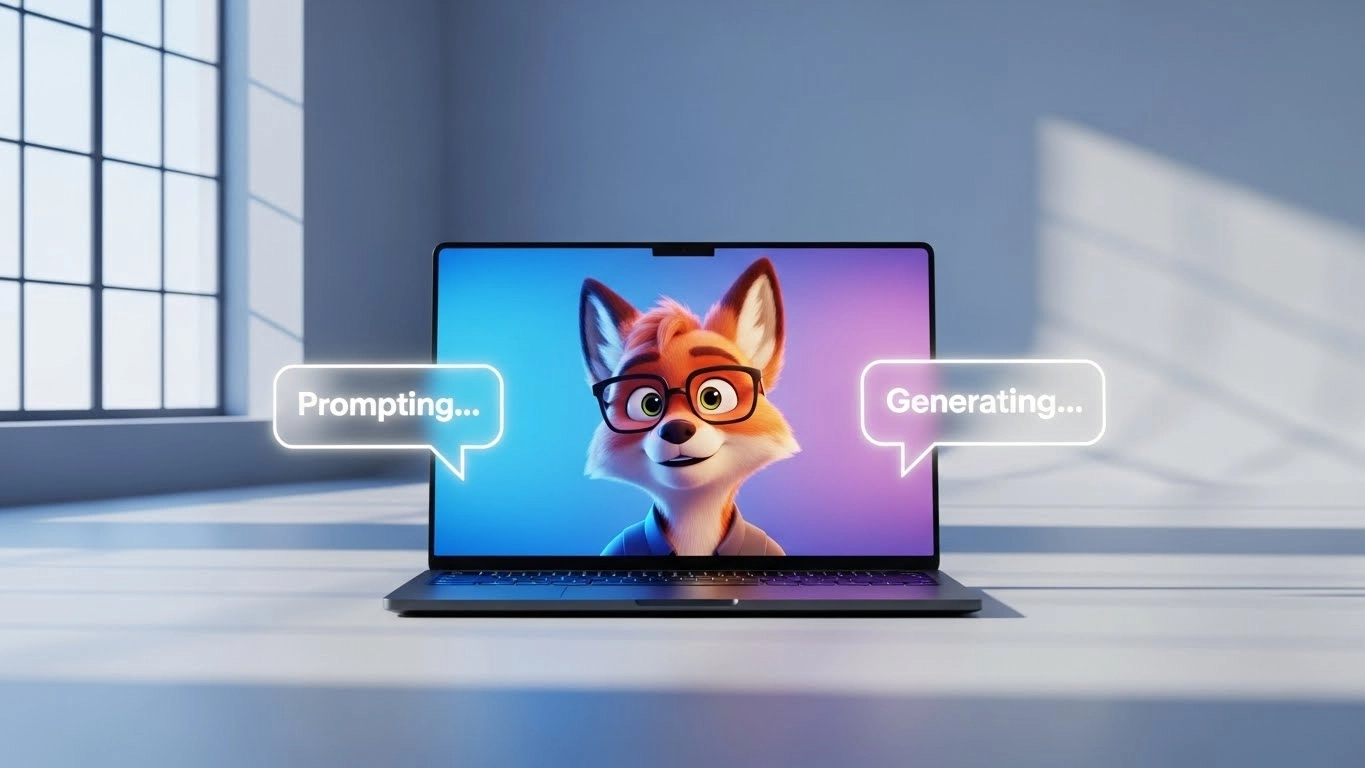
From Script to Screen: How I Finally Mastered AI Animation (Without Drawing a Single Line)
The Bottom Line Up Front (BLUF): Text-to-2D animation is finally ready for primetime. If you’re an entrepreneur, educator, or marketer who needs high-quality video but can’t draw to save your life, these tools are a total game-changer. It’s not “one-click” perfect yet, but it can cut your production time by 80% if you know which tools to use.
Key Takeaways for Busy Creators
- 🚀 Speed is the Superpower: What used to take weeks now takes an afternoon.
- 🤖 Prompting is the New Drawing: Your ability to describe a scene is more important than your ability to sketch it.
- ⚠️ Consistency is the Catch: Keeping characters looking the same across scenes is still the biggest “technical tax” you’ll pay.
- 🛠️ Hybrid Wins: The best results come from using AI to generate the “heavy lifting” and a simple editor for the final polish.
Let’s be honest: I am not an artist. If you asked me to draw a character walking across a room, it would look like a stick figure having a mid-life crisis. For years, this was a massive bottleneck for my business. I had stories to tell and products to explain, but hiring a professional animation studio cost more than my first car.

Then came the “Text-to-Animation” explosion. I spent the last few weeks diving deep into tools like Runway Gen-2, Pika, and Animaker to see if a non-artist like me could actually produce something professional. Here’s what I learned on the front lines.
The Tools: Which One Actually Works?
I didn’t just read the manuals; I sat in front of the dashboard until my eyes blurred. Here is my “boots on the ground” report on the leading platforms.
1. Runway Gen-2 & Gen-3: The Cinematic Choice

When I first opened the Runway dashboard, I was intimidated. But once I used the “Motion Brush” tool, everything clicked. I uploaded a static image of a character, painted over their arm, and told the AI to “wave.” It felt like magic. Runway is perfect if you want that high-end, cinematic feel, but be prepared—it can get expensive if you’re doing a lot of trial and error.
2. Pika Labs: The Speed King

If I need a 5-second clip for a social media ad, I go to Pika. Their Lip-Sync feature is surprisingly effective. I dropped in a voiceover I made with ElevenLabs, and the AI matched the character’s mouth movements almost perfectly. It’s snappy, fun, and great for rapid-fire content.
3. Animaker: The Business “Explainer” Tool

This is the most “user-friendly” for the average entrepreneur. It feels less like “scary AI” and more like a supercharged version of Canva. It has a massive library of pre-built characters you can customize. It’s my go-to for HR training videos or simple service explainers.
💡 Pro Tip: Don’t try to generate a 2-minute video in one go. The AI will lose its mind (and your character’s face will start melting). Generate 5-10 second “bricks” and stack them together in an editor like CapCut or Premiere.
The “Dirty Secrets”: What the Marketing Won’t Tell You
I promised you an honest review, so let’s talk about the frustrations. No, it isn’t perfect.
- The “Flicker” Problem: Sometimes your character’s shirt will change color or their hair will “vibrate” between frames. This is called temporal inconsistency. It’s annoying, and often requires 3 or 4 “re-rolls” of the same prompt to get a clean shot.
- Spaghetti Hands: AI still struggles with complex physics. I tried to animate a character tying their shoelaces, and it ended up looking like a glitch in the Matrix. My advice? Keep the actions simple. Walking, waving, or talking works great. Playing the piano? Not so much.
My Workflow: From Script to Screen in 4 Hours

If you want to try this yourself, here is the exact 3-step process I use now:
- Phase 1: The Character Sheet. I use a tool like Adobe Firefly to create a “Reference Image” of my character from the front, side, and back. I keep this open in a separate tab to make sure my prompts stay consistent.
- Phase 2: The Action Prompts. I use the Context-Action-Style formula. Instead of saying “man walking,” I say: “Flat 2D vector style, wide shot, a determined businessman in a blue suit walking through a sunny park, 24fps.” The more detail, the better.
- Phase 3: The Cleanup. I take all my 5-second clips into After Effects (or CapCut if I’m in a rush). I add a bit of “Motion Blur” to hide any AI jitters and layer in some background music.
Pros vs. Cons: The Entrepreneur’s View
✅ The Pros
- No drawing skills required (at all).
- Cost is roughly 10% of a traditional studio.
- You can pivot your creative direction in minutes.
- Perfect for “A/B testing” different video styles.
❌ The Cons
- Steep learning curve for “prompt engineering.”
- Character consistency can be a headache.
- Requires a decent internet connection and GPU power.
- Can become a “time-sink” if you’re a perfectionist.
The Verdict: Is it Worth Your Time?
🏆 Final Verdict: 4.5 / 5 Stars
Best For: Entrepreneurs, Solo-creators, and Marketing teams who need high-volume content without the high-volume budget.
Not For: Feature-film purists who demand frame-perfect character consistency or those who hate technical troubleshooting.
Conclusion: If you are waiting for the technology to be “perfect,” you’re going to get left behind. Start playing with these tools today, even if it’s just the free versions. The “creative gap” between you and the big studios has never been smaller.
What’s your experience?
I’m curious—have you tried any of these AI animation tools for your business yet? Did you struggle with the “flicker” as much as I did, or did you find a secret trick to keep your characters consistent? Drop a comment below and let’s swap notes!
| Tool Name ↕ | Best For ↕ | Pricing ↕ | Rating ↕ | Action |
|---|
Technical Sources & Research References
This guide was compiled using technical specifications and documentation from the following industry leaders in Generative AI and Animation:
-
📁 Runway Research: Technical documentation on Gen-2 and Gen-3 Alpha video diffusion models.
Source: RunwayML Research Labs -
📁 Adobe Firefly: Documentation on “Commercially Safe” AI training sets and Text-to-Vector engines.
Source: Adobe Creative Cloud Engineering -
📁 Stability AI / AnimateDiff: Open-source whitepapers on temporal consistency in latent diffusion models.
Source: Stability AI Technical Blog -
📁 U.S. Copyright Office: Reference on the copyrightability of AI-generated content (revised 2024-2025 guidelines).
Source: Copyright.gov AI Section